Assigning Units to Scalar Values
If required, you can assign a new unit to scalar values. In this case, the default unit of the stored scalar values will be changed, but the scalar values will be kept as is. For example, if the scalar value stored is 0.75 meters and the unit assigned to length is centimeters, then the scalar value shown would be equivalent to 0.0075 meters. You should note that the default units of lengths, areas, and volumes is meters, while the default unit of angles is radians. Discrete and continuous values are not stored with units.
The following example illustrates how assigning a unit to scalar values is implemented. You should note that measurements will always appear in the units selected for the scene views.
| Measurement shown (length): | 3.75 cm |
| Scalar value stored: | 0.0375 m |
| Value shown when the assigned unit to length is discrete: | 0.0375 |
| Value shown when the assigned unit to length is mm: | 0.00375 cm |
| Value shown when the assigned unit to length is dm: | 0.375 cm |
 How to Assign a Unit to Scalar Values
- Right-click the scalar mesh and then choose Assign Unit to Scalar Values in the pop-up menu.
The Choose a Scalar Values Slot dialog appears.
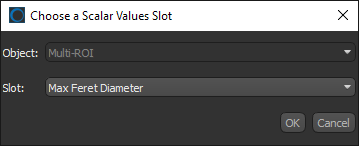
- Choose the scalar value slot that you want to assign a unit to in the Slot drop-down menu and then click OK.
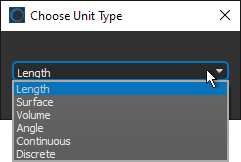
The Choose Unit Type dialog appears.
- Choose a unit type in the Choose Unit Type dialog, as shown below.
- Click OK.
- Choose a unit in the Choose Unit dialog, as shown below.
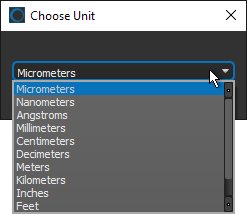
This is the unit that will be applied to the stored scalar value.
- Click OK.
The selected scalar value slot is updated.